


Why you are seeing this
Browser privacy settings can block cookies or cross-site content that VitalSource needs inside Blackboard Ultra. If you see “launch unsuccessful” or similar errors, find your browser below and adjust the settings to allow the materials to load.
Open the Google Chrome settings by clicking the 3 vertical dots in the top right corner of the window, and navigate to the Privacy and security tab. Click Third party cookies.

Under Sites allowed to use third-party cookies, click the Add button.

Type in the URL of the site you wish to allow third-party cookies for.

URL to add:
- bc.vitalsource.com
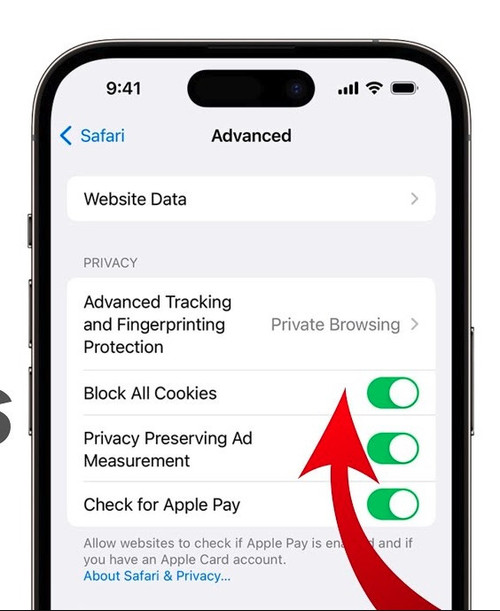
1) Turn off “Block All Cookies”
Settings → Safari → Advanced → Block All Cookies set to Off.
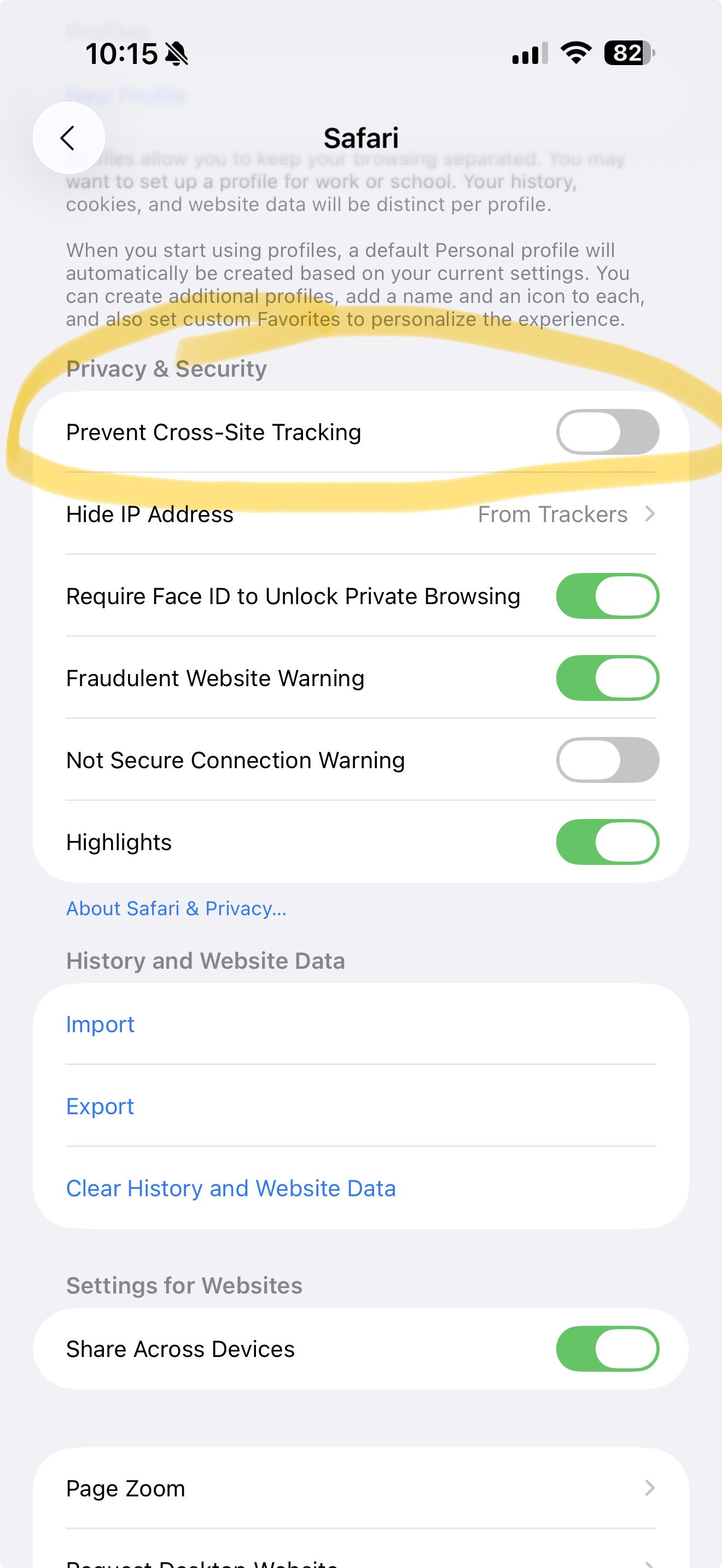
2) Turn off “Prevent Cross-Site Tracking”
Settings → Safari → Prevent Cross-Site Tracking set to Off.
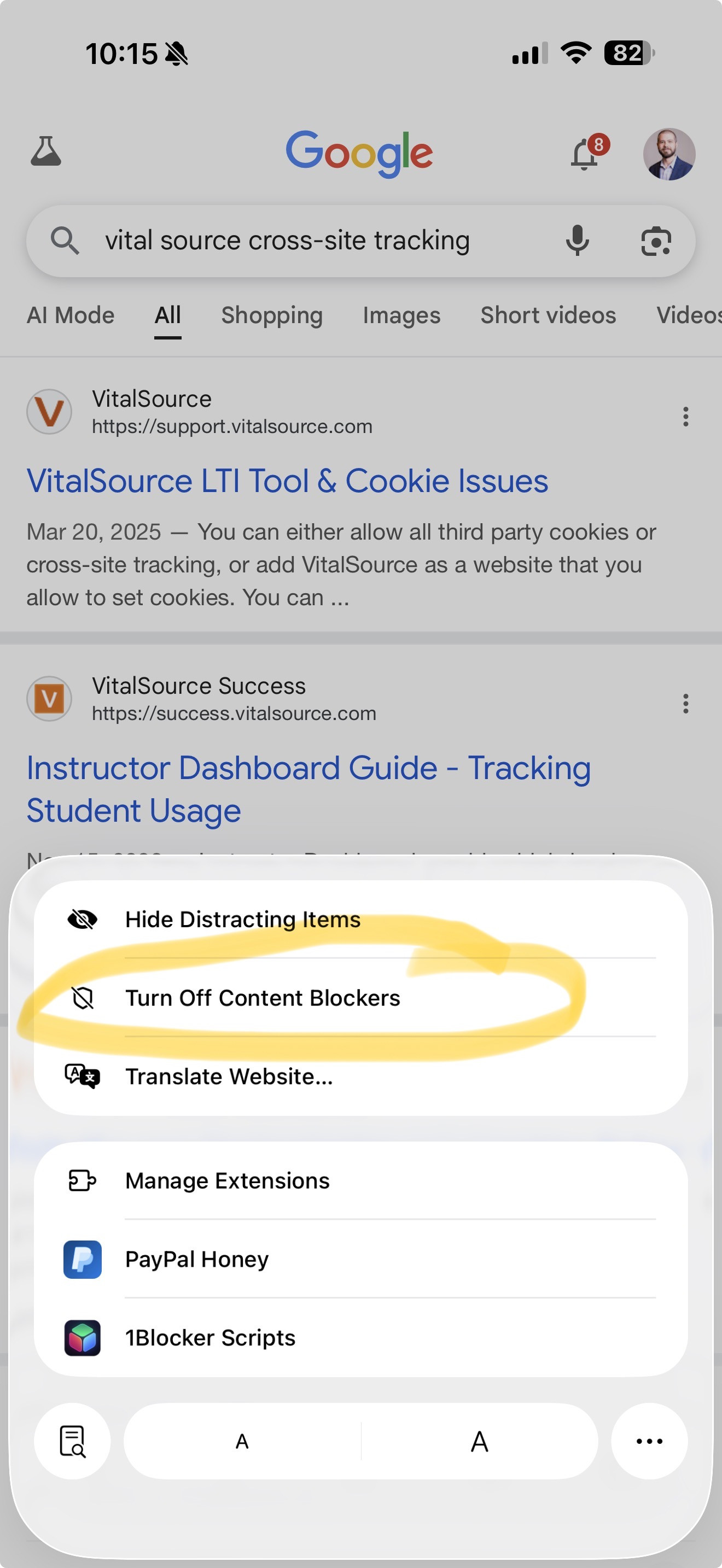
3) Turn off Content Blockers for Blackboard
In Safari, tap the “aA” or puzzle icon in the address bar and choose Turn Off Content Blockers for the site.
 Back to top
1) Open Safari settings
Safari menu → Settings or Preferences.

2) Privacy settings
Privacy tab → uncheck Prevent Cross-Site Tracking. Also confirm Hide IP Address is not restricting the site.
 Back to top
Enable cross-website tracking for the app on iOS or iPadOS:
- Open Settings
- Scroll to Apps and tap Blackboard
- Turn on Allow Cross-Website Tracking
VitalSource cookie policy
VitalSource requires cookies inside Blackboard Ultra. If cookies are blocked, materials will not load. View policy
Still need help
Send a screenshot of the error to tmcdonald@textbookbrokers.com.